FSX 2020: Exporting Reports

FSX 2020: Exporting Reports

In order to export a report in FSX 2020, you must follow the steps below: 


1. Access the Analysis Screen by hitting the "i" button on your keyboard

2. Select the Export Option in the upper right corner

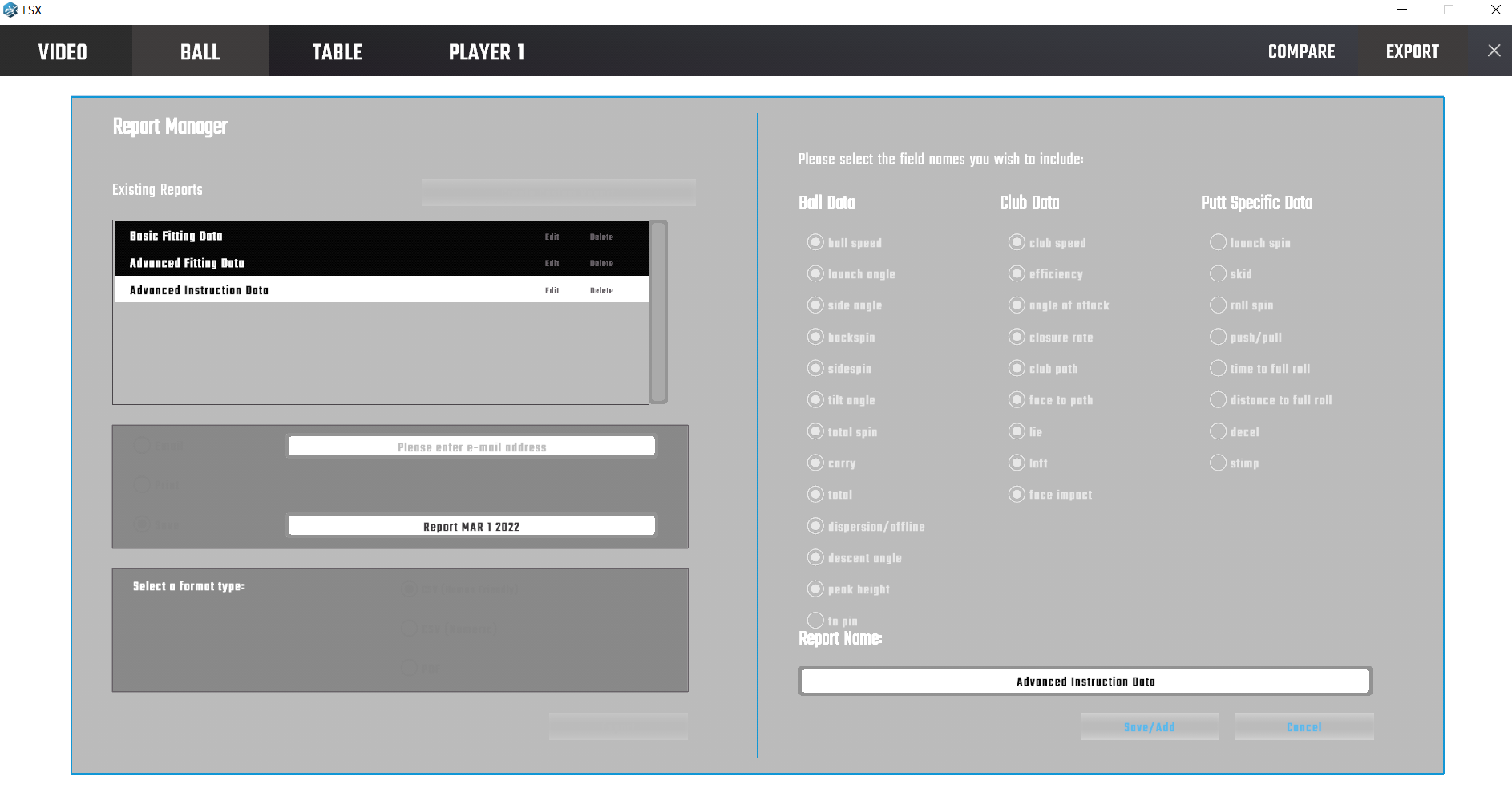
3. Select the reporting option you prefer, edit the default option, or create your own custom report
 

mceclip0.png

    • Related Articles

    • Unlocking FSX 2020 Courses For FSX PLAY & FSX 2020 Simultaneously

      FSX 2020 and FSX PLAY are designed to allow your FSX LIVE Course Library to operate on both. This means that if you purchased a course for FSX 2020 you will also be granted access to that same course license in FSX PLAY when using the same FSX LIVE ...
    • Netplay - Setup For Original FSX / FSX 2018 / FSX 2020

      Netplay requires the following: Both users having the EXACT same version of FSX Both users having the EXACT same version of the course being hosted Both users have disabled local windows and network file walls, or allowed the following acceptations: ...
    • Original FSX Installation and Activation

      Running FSX Installation To begin using your new FSX software, please follow the instructions below: Instruction for this may also be found via the online PDF: FSX Installation Instructions Double-click to run the “FORESIGHT SPORTS EXPERIENCE ...
    • FSX Lagging Or Center Line Skipping

      FSX Lagging Or Center Line Skipping (Dell PCs) Issue: FSX 2020, FSX Play, FSX Pro is stuttering, or gameplay is choppy. Reason: The PCs BIOS has not been updated or the PC has not been optimized Resolution: Take steps in the video below to update the ...
    • FSX Play Saved Sessions

      FSX PLAY will allow you to save a session and return to it later. Reviewing Completed FSX PLAY sessions data is available to you online when you have signed into your FSX LIVE profile as your player when beginning your session. To access this, sign ...